Sign-in failed
The server rejects the username or password. With providers that use two-factor authentication, you need an app password instead of your normal one.
Guide
Each step stands on its own, jump straight to the one you need.
Overview
Eight steps from registration to credit, plus help if a connection doesn't work.
Getting started
The only part you do once, after that you just open your mailbox.
Registration currently requires an invitation code from PixAgentur, an email address and a password with at least ten characters. A confirmation email is sent after successful registration.
Open it and click the link inside, only then can you sign in. If no mail arrives, check the spam folder of your existing mailbox, that's where the confirmation goes.
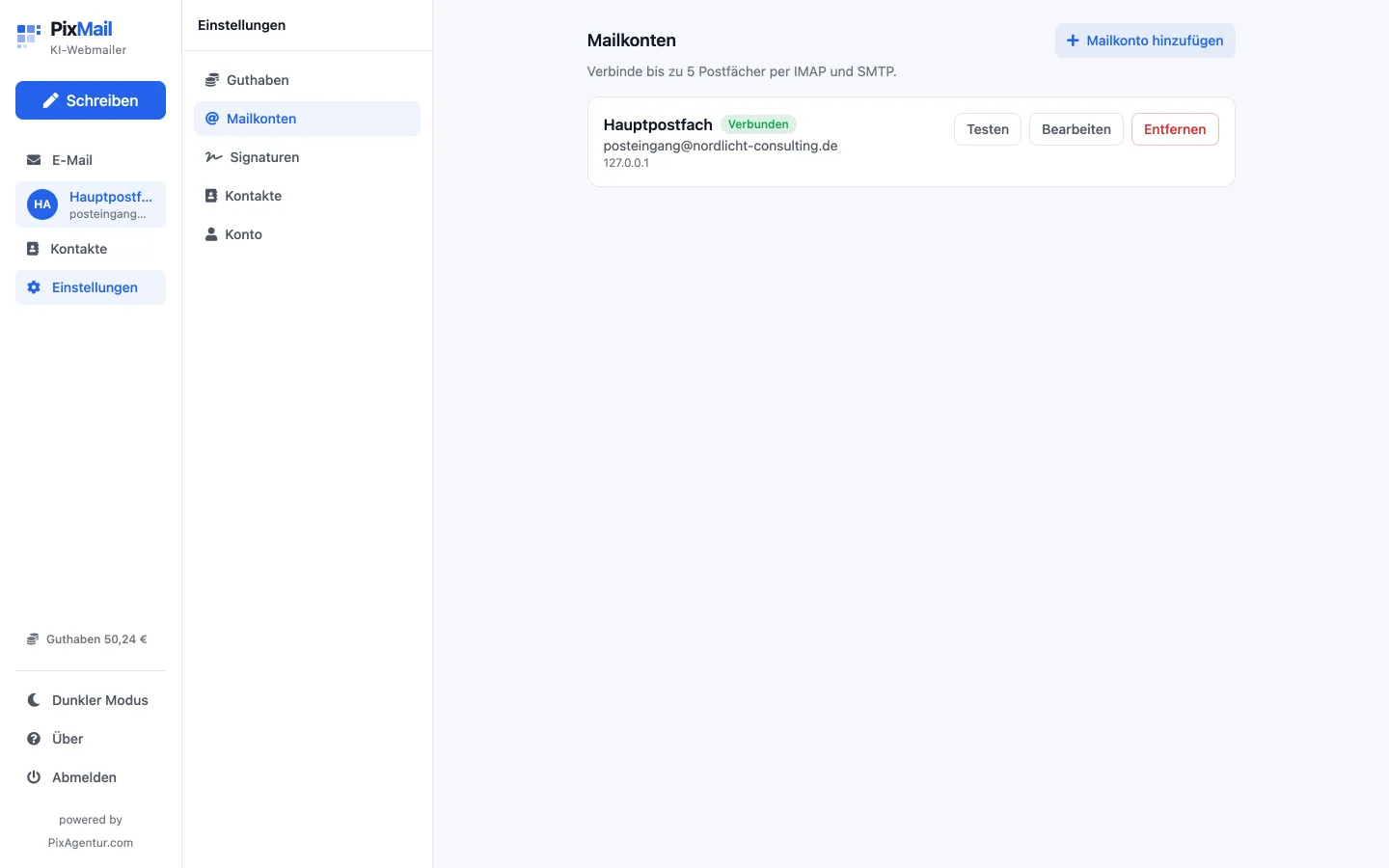
Under Settings → Mail accounts, you set up your first mailbox. A provider dropdown fills in the server, port, and encryption for you, you only enter the address and password. "Test" checks the connection before anything is saved.
These providers are already set up
Up to five mail accounts at once.
Day to day
Once a mail account is connected, working with it looks like any other mailbox, just with AI within reach.
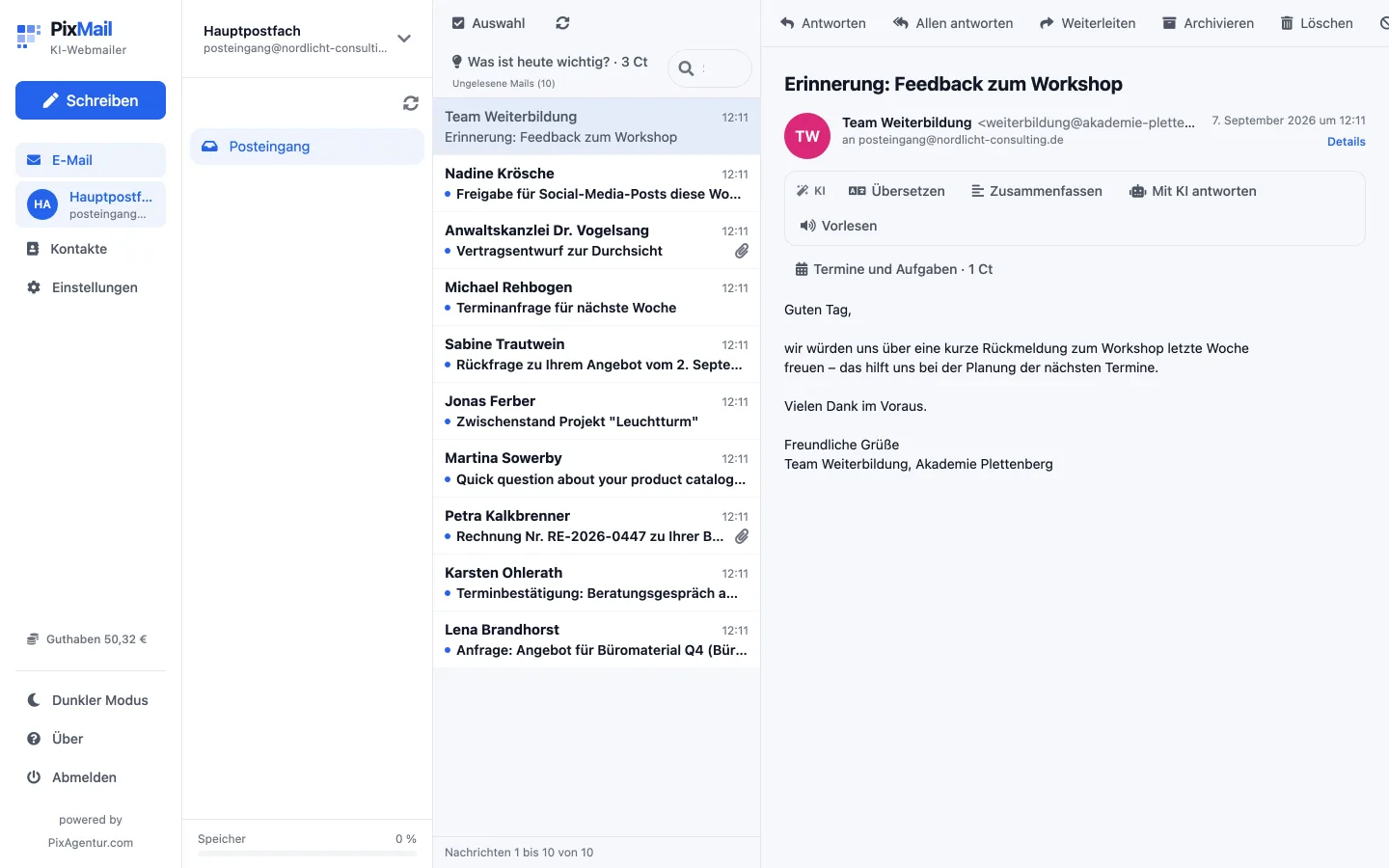
The folders of your mailbox sit on the left: Inbox, Drafts, Sent, Spam, and Trash, plus Archive, Important, or Starred if your mail server knows them. Click a message to open it in the reading pane on the right.
Use the search field to find a single mail, or the selection tool for several at once, to mark them all as read together, for example.
Open a mail and click "Reply with AI" in the AI bar. In guided mode, you type keywords in your own language, and the AI turns them into a reply in the target language.
Without your own keywords, the AI drafts the reply entirely from context: it reads the mail, picks the tone and language itself, and asks instead of inventing a missing detail like a date or a price. Afterward you can edit the reply, generate it again, or use it in your reply.
Setting up
Two things you set up once and then forget about.
Under Settings → Signatures, you create a signature with a name and text, or have the AI write one: from your name, role, company, phone, website, and a style (short, classic, or modern), a finished text appears.
For each mail account, you decide which signature appears by default when writing.
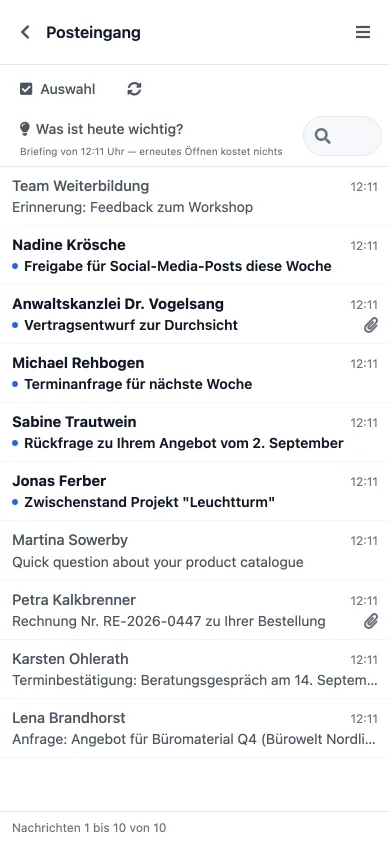
Connect up to five mailboxes, a personal one and a work one, for example. The account switcher in the folder list shows which one is currently open.
Each account keeps its own folders and its own default signature.
On the go
Two things you do once and then never notice again.
pixmail.app installs straight from the browser, no app store needed: on a computer via the install icon in the address bar, on a phone via "Add to home screen" in the browser menu.
After that, the app starts on its own, without an address bar around it. A new version loads automatically in the background, and a "Reload" notice tells you when it's ready.
Under Settings → Credit, choose one of the packages and pay through Stripe.
Credit is added automatically once Stripe confirms the payment. Packages and prices are on the Pricing page.
If something doesn't work
Most errors setting up a mail account come down to one of four causes.
The server rejects the username or password. With providers that use two-factor authentication, you need an app password instead of your normal one.
The host or port is wrong. Check both against your provider's help pages, especially with "Custom server".
SSL/TLS and STARTTLS use different ports. Enter the wrong type and the connection breaks right here.
The mail server doesn't answer in time. That's usually your provider's server, not pixmail.app, trying again often clears it up.
More answers are in the FAQ, or the Contact page can help.